
Your attraction in 3D. Before the first wall goes up.
Atraxis Stage consists of two desktop apps: Stage Editor for planning and simulation, Stage Runtime for running the show. Each can be used on its own.
Draw rooms, walls and doors to scale, furnish them with surfaces, furniture, light and sound, and let simulated guests walk through your attraction. The Runtime runs the finished show.
- 1Stage Editor
- 2Show file
- 3Stage Runtime
- 4QLab, OSC, MIDI, HTTP
Stage Editor: build like a floor plan, see it in 3D
Floors, rooms and outdoor areas, walls with height profiles and wall build-ups, curved walls, doors, windows, stairs with landings and terrain. For outdoor builds there are construction fences with covers, plus blocks and trusses.
Open several attractions of an event in tabs and arrange them on an event map.
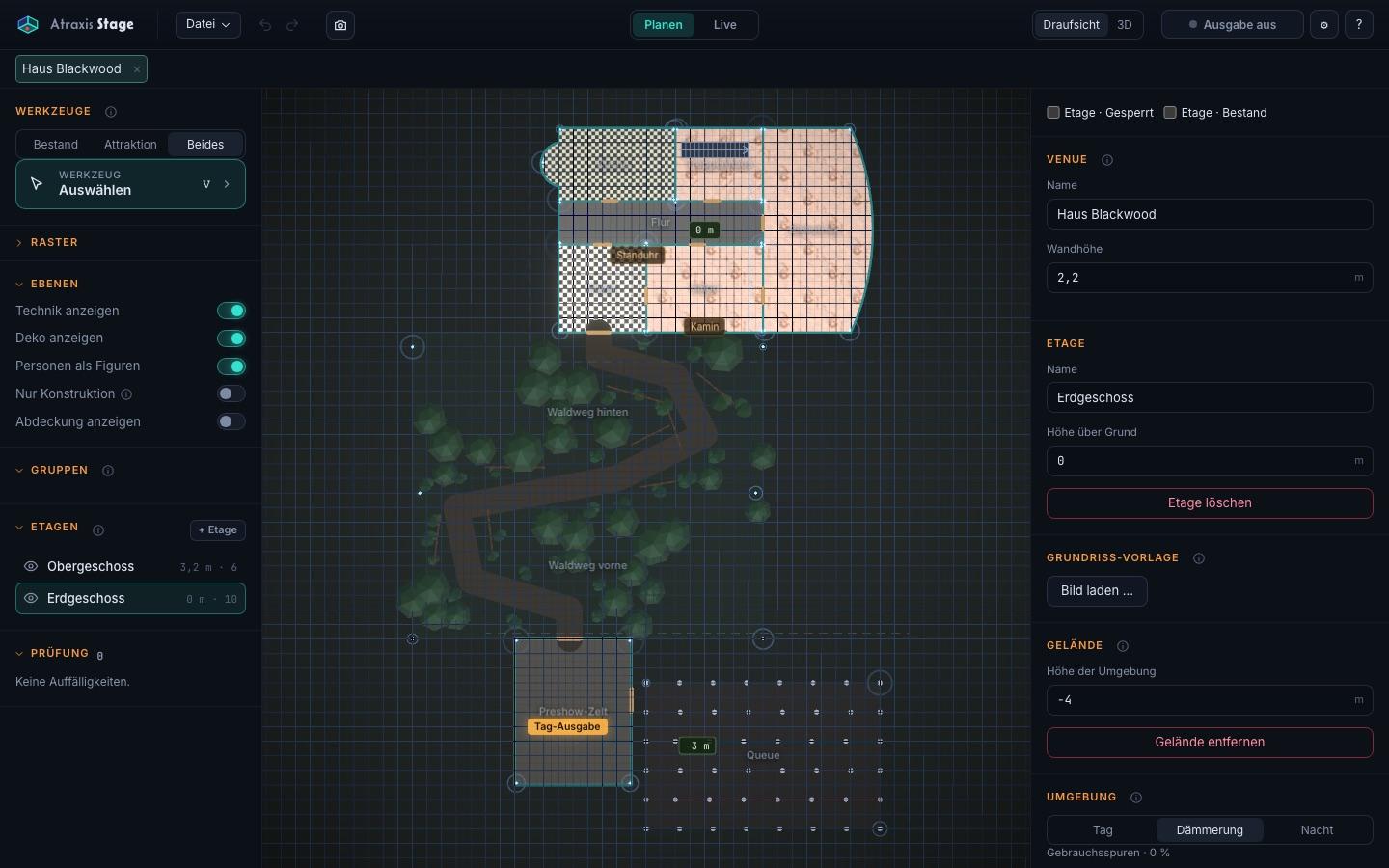
Furnish, present, order
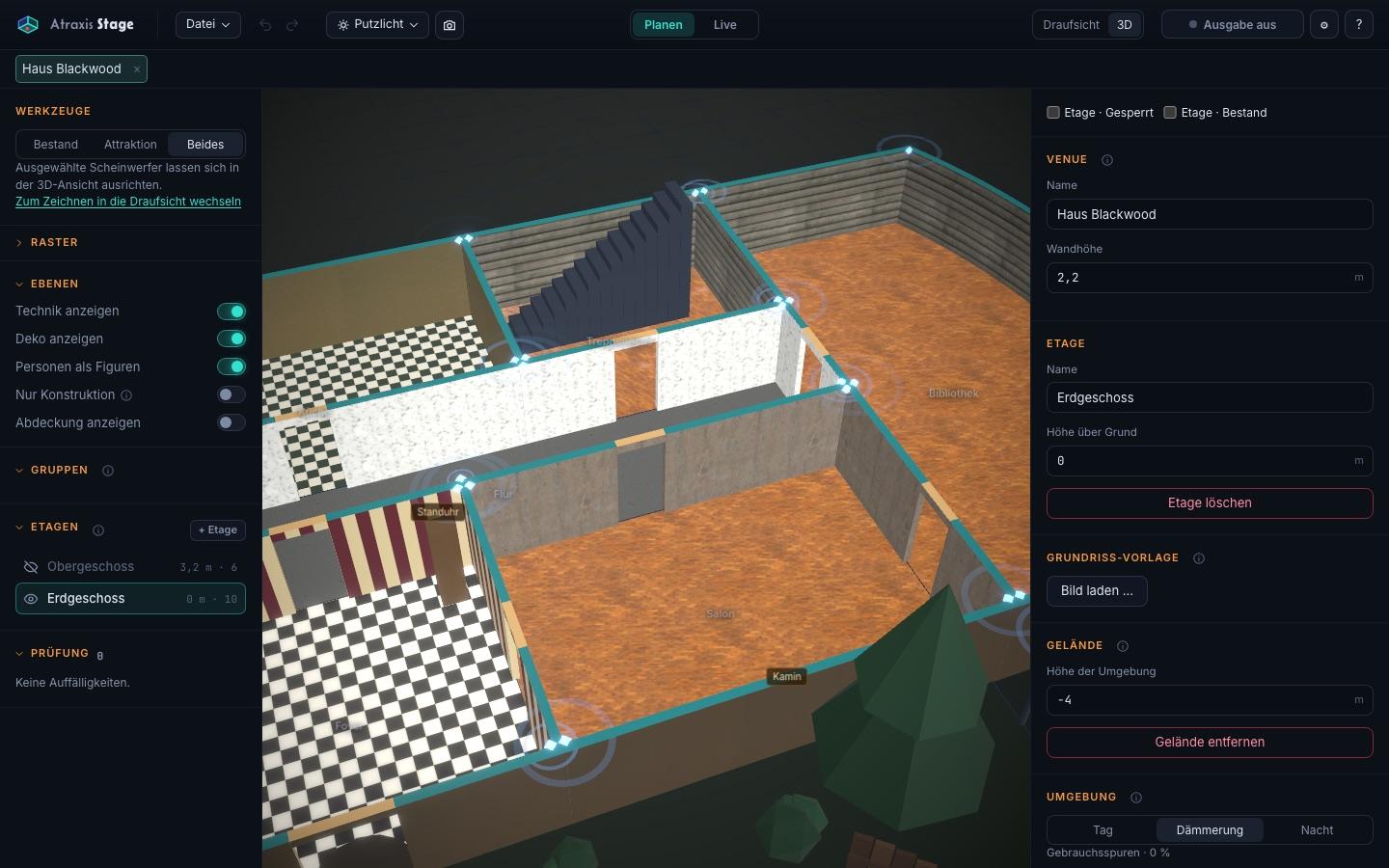
Walls and floors get surfaces from the library or from your own photos. Furniture, lamps and props come from the included library, and you can import your own 3D models.
For presentations the Editor renders photorealistic images; for the build it exports floor plans as PDF, PNG, SVG or DXF and a bill of quantities.
Plan light, sound and technology
Point lights and spots with fixture types from GDTF files, DMX patch and export as MVR, CSV or a list for QLab. Group speakers together.
Place beacons for tracking systems right in the plan - a heat map shows where coverage reaches and where gaps remain.
Simulation and rules
In the Editor's live mode, simulated guests walk through the attraction with path finding, different behaviour and scare reactions. Rules decide what happens when guests or performers enter a room, meet or linger - triggering QLab cues as well as OSC, MIDI and HTTP commands.
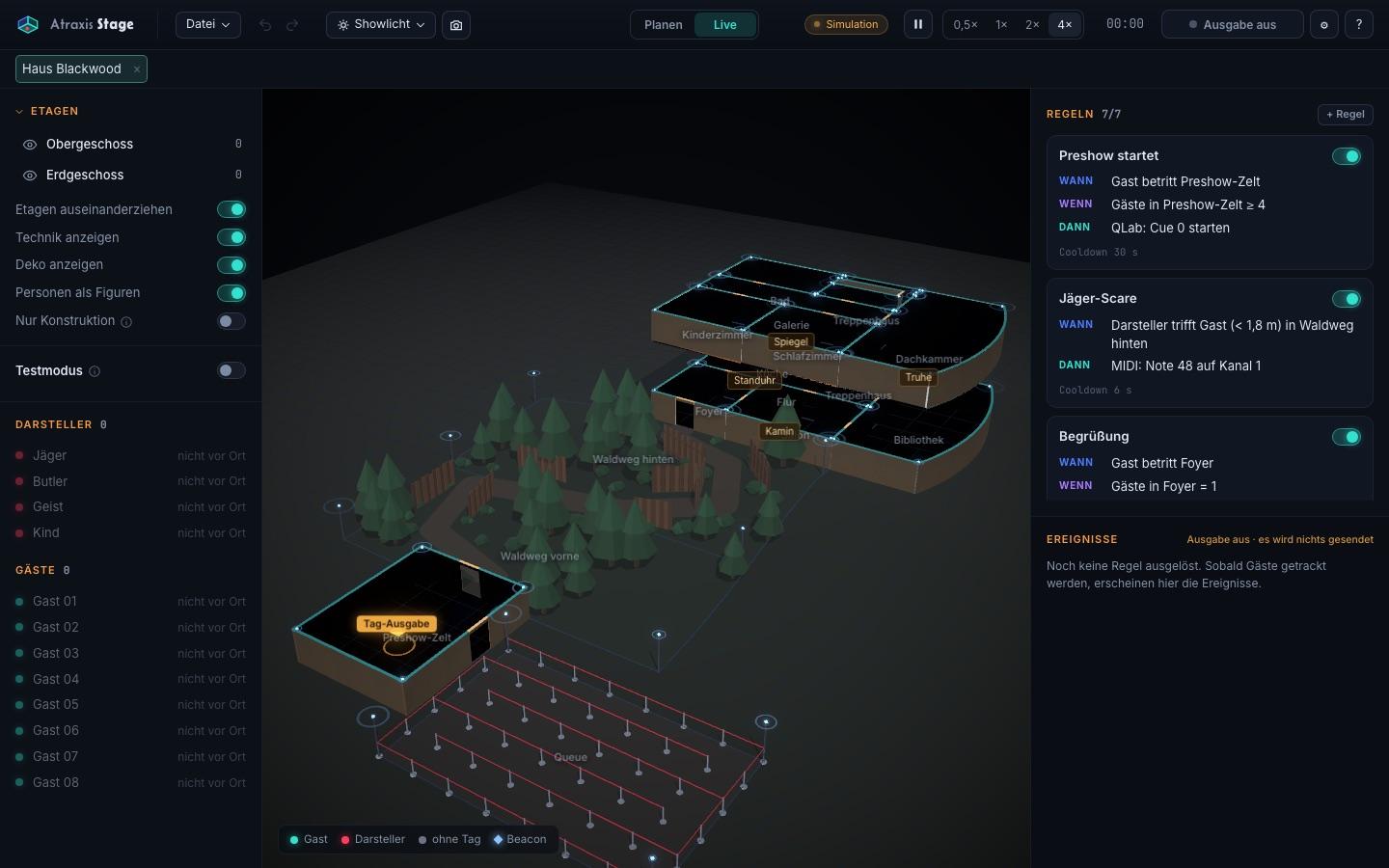
Stage Runtime: the show in operation
The Runtime loads a show, starts and stops it. While the show is stopped you adjust rules directly, without opening the Editor.
Positions currently come from the simulation; receiving tracking data is next.
Standalone - and still connected
Stage doesn't need the Planner. You sign in with your Atraxis account and see licences and devices in Atraxis Account.
Plan your next attraction in 3D
Tell us what you're building and which technology you use. Atraxis Stage is in closed beta - together we'll see whether it fits your project.